> For the complete documentation index, see [llms.txt](https://adagio-io.gitbook.io/adagio-documentation/llms.txt). Markdown versions of documentation pages are available by appending `.md` to page URLs; this page is available as [Markdown](https://adagio-io.gitbook.io/adagio-documentation/account-configuration/manage-user-access.md).
# Manage User Access
As an admin, you have full control over who joins your team and what they can access. Use this guide to get your collaborators onboarded and manage their permissions.
### 🔑 Choose the Right Role
When you invite someone, you'll need to assign a role. Here’s a quick breakdown of how they work:
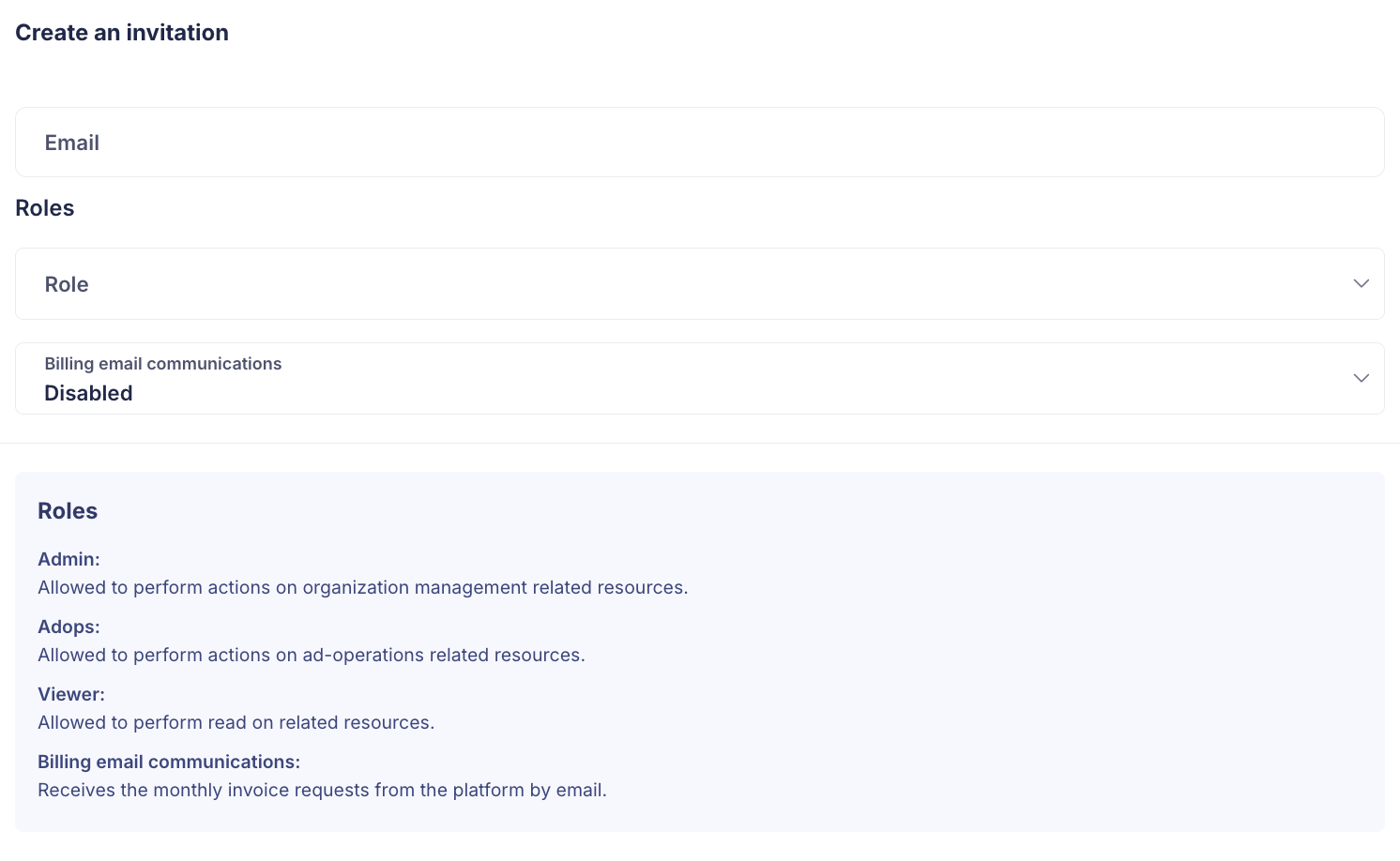
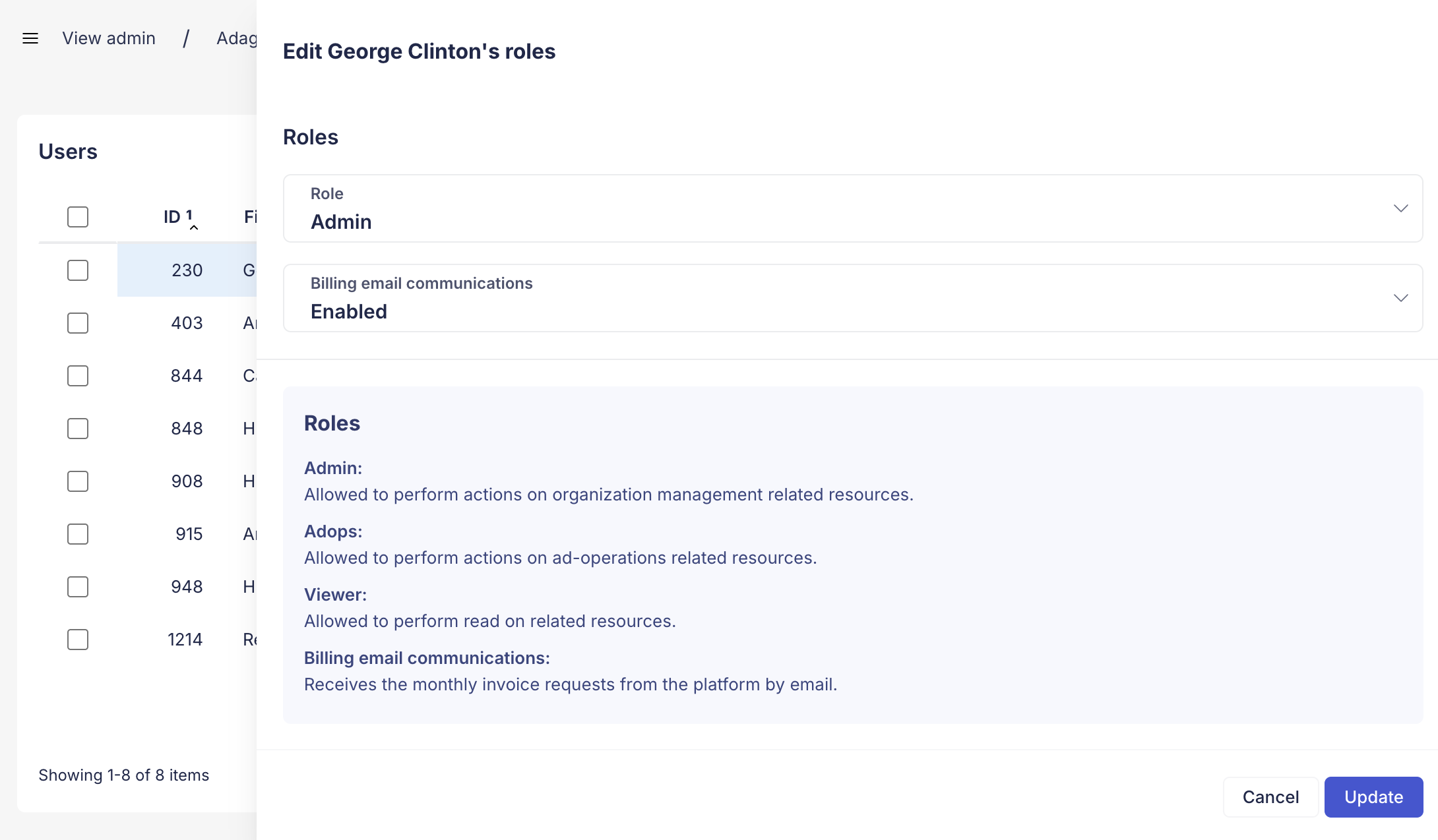
About roles
**Admin**: Allowed to perform actions on organization management related resources.\
\
**Adops**: Allowed to perform actions on ad-operations related resources but cannot edit the most sensitive account details.\
\
**Viewer**: Can only view monetisation insights and current portfolio of monetised properties.\
\
**Billing email communications**: Receives monthly invoice requests from Adagio's platform by email.
### 📩 Invite New Members
Getting your team into Adagio is simple:
{% stepper %}
{% step %}
### Access your Account
Once you receive your credentials, log in to .
{% endstep %}
{% step %}
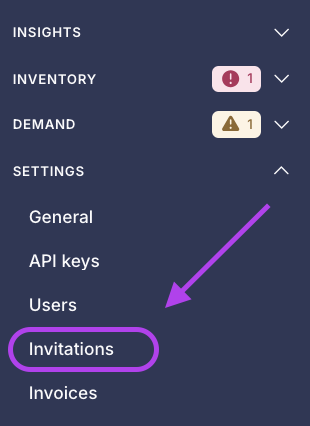
### Go to Settings > Invitations
In your left Menu, you can access your settings account and hit **Invitations**.
{% endstep %}
{% step %}
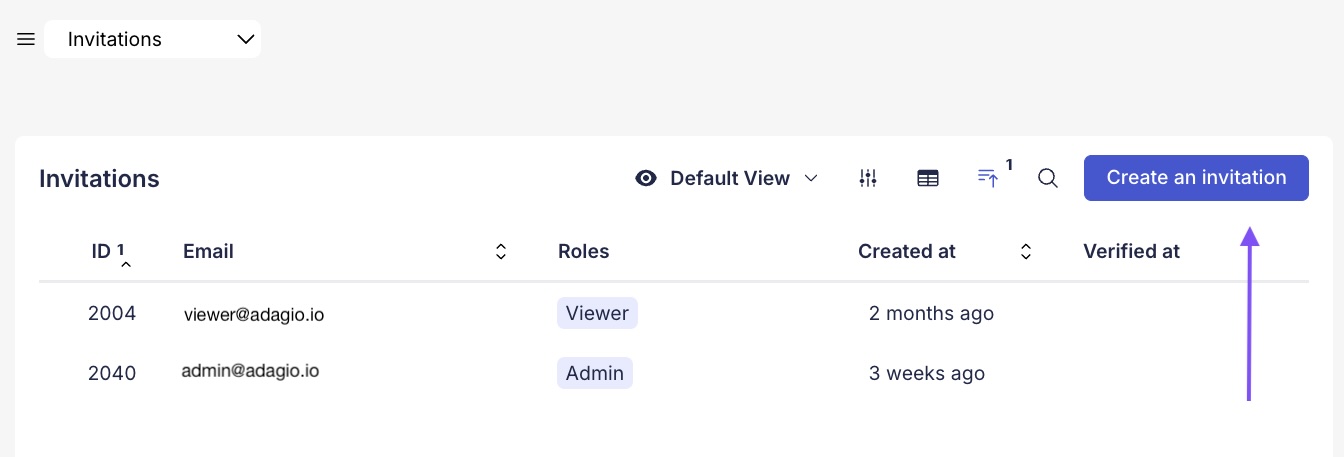
### Create an invite
Hit the button "create an invitation" in the upper-right corner
{% endstep %}
{% step %}
### Enter Details
* Input user email address.
* Choose their Role.
* Billing Notifications: Toggle this to **Enabled** if this user should receive invoices and payment alerts, **or Disabled** it they shouldn't.
{% endstep %}
{% step %}
### Save & Follow-up
Your recipient will receive an email with an invite link to create their account.
{% hint style="info" %}
**Can't find the email?** You can resend the invite at any time or copy the direct invitation link to send it via other channels. If you made a mistake, you can also delete the invitation to revoke the link before it's used.
{% endhint %}
{% endstep %}
{% endstepper %}
### 🔄 Modify User Access & Security
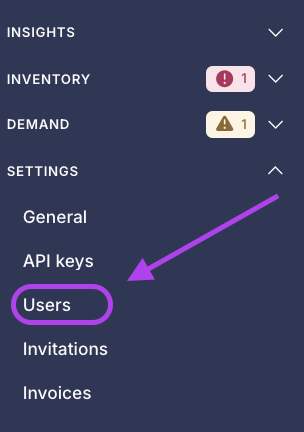
Once a user has joined your workspace, you can manage their account status and security settings directly from the Users list. **Go to Settings > Users**.
**Click on a specific user profile to access** the following options:
* **Change Roles**: Instantly promote a Member to Admin or adjust permissions as responsibilities change.
* **Update Billing Status**: Toggle billing email communications on or off at any time to control who receives financial alerts.
#### Security and Removal
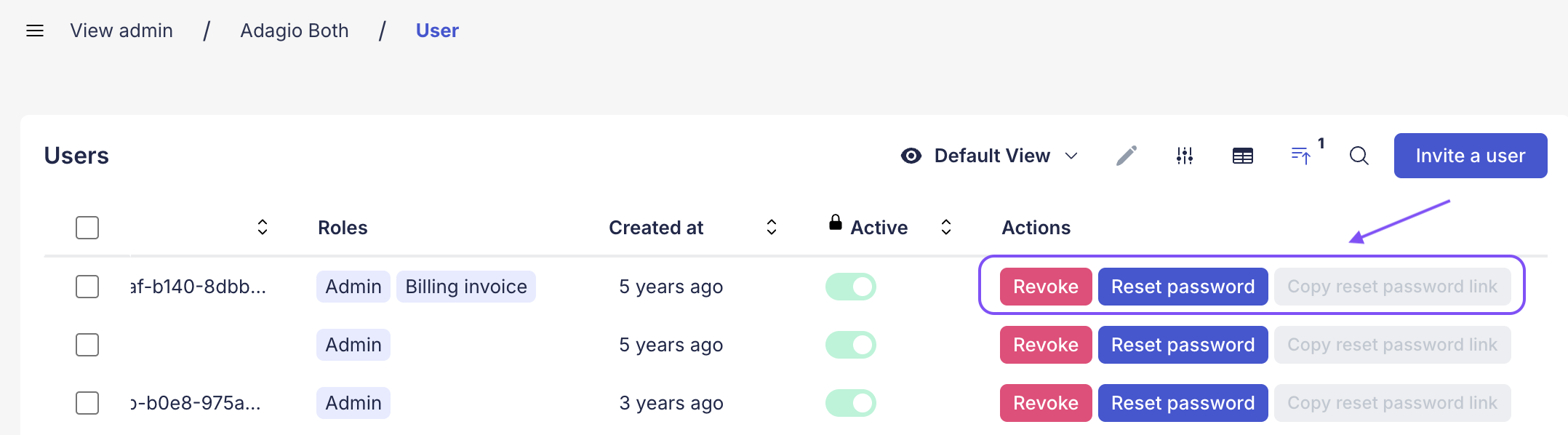
In the user list view, you may need to scroll horizontally to access additional administrative actions:
* **Reset Password & Copy Link**: If a team member has forgotten their credentials, click the **Reset Password button** to trigger an automated email. You can also **Copy the Reset Password Link** to send it to them manually through your own communication channels.
* **Revoke Access**: If you need to remove a collaborator from the workspace, hit the **Revoke button**. This will instantly terminate their access and free up a seat in your plan.
---
# Agent Instructions
This documentation is published with GitBook. GitBook is the documentation platform designed so that both humans and AI agents can read, navigate, and reason over technical content effectively. Learn more at gitbook.com.
## Querying This Documentation
If you need additional information that is not directly available in this page, you can query the documentation dynamically by asking a question.
Perform an HTTP GET request on the current page URL with the `ask` query parameter, and the optional `goal` query parameter:
```
GET https://adagio-io.gitbook.io/adagio-documentation/account-configuration/manage-user-access.md?ask=&goal=
```
`ask` is the immediate question: it should be specific, self-contained, and written in natural language.
`goal` is optional and describes the broader end goal you are ultimately trying to accomplish on behalf of the user. GitBook uses it to tailor the answer towards what is most useful for that goal.
The response will contain a direct answer to the question and relevant excerpts and sources from the documentation.
Use this mechanism when the answer is not explicitly present in the current page, you need clarification or additional context, or you want to retrieve related documentation sections.